
FormFlow puts forms on your storefront in two ways:
- Popups — shown by the FormFlow app embed, a single switch that works on every theme.
- Inline forms — placed on a page with the FormFlow Form block. Inline forms need an Online Store 2.0 theme.
You can find these same steps any time in FormFlow under Store setup.
Check your theme type
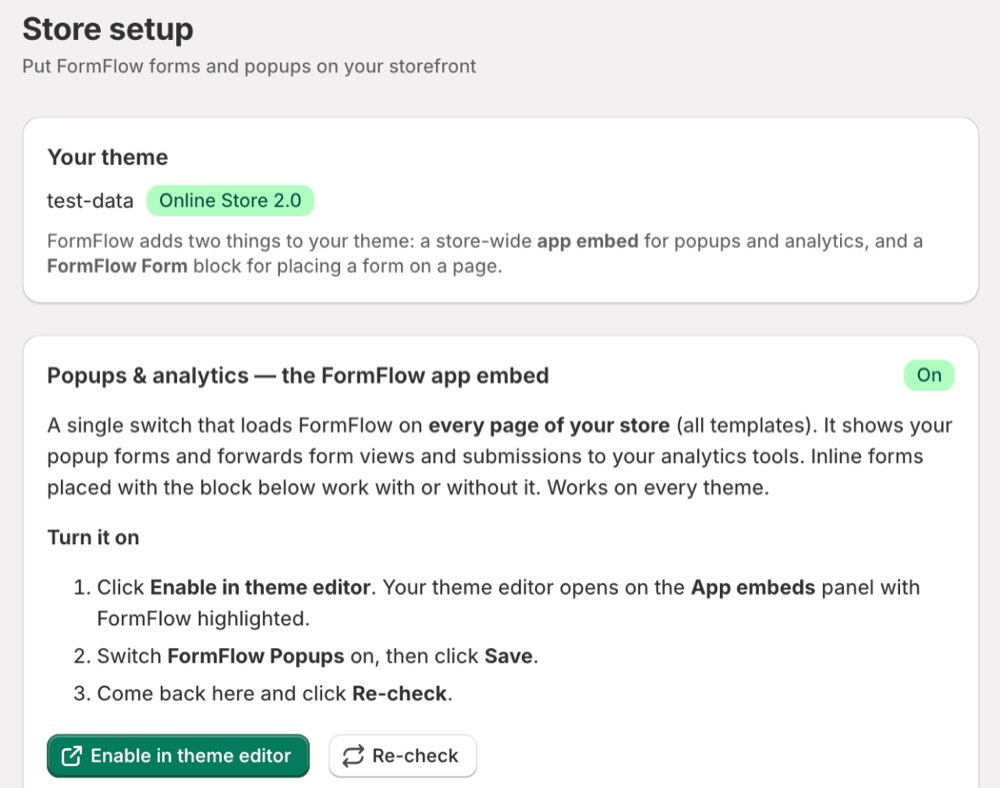
In FormFlow, open Store setup. The Your theme card shows your published theme and whether it's an Online Store 2.0 theme.
- Online Store 2.0 (for example Dawn, or any theme from the Shopify Theme Store): you can use popups and inline forms.
- Vintage theme: you can use popups, but the FormFlow Form block isn't available. See If you have a vintage theme below.
Turn on popups and analytics (the app embed)
The app embed loads FormFlow on every page of your store. It shows your popup forms and sends form views and submissions to your connected analytics tools. Inline forms work with or without it.
- In FormFlow, open Store setup and click Enable in theme editor.
- Your theme editor opens on the App embeds panel with FormFlow highlighted.
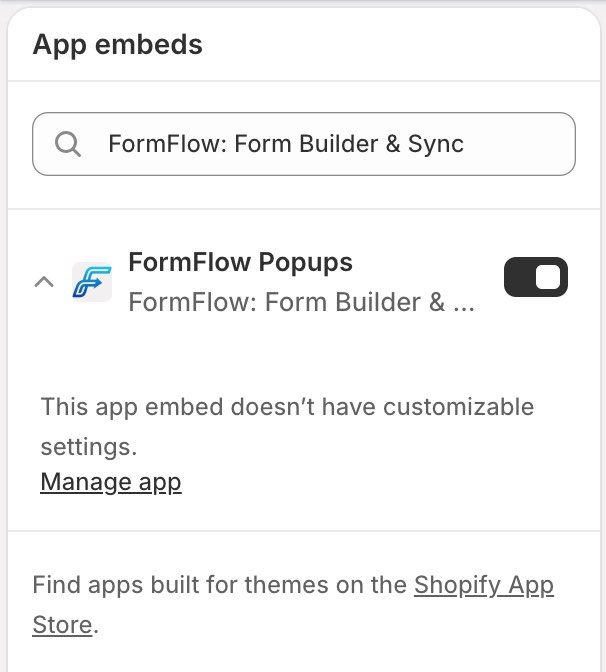
- Switch FormFlow Popups on, then click Save.
- Back in FormFlow, click Re-check. The status changes to On.
Turn the app embed off
- In Shopify admin, go to Online Store → Themes and click Customize.
- Click the App embeds icon (the puzzle piece) in the left sidebar.
- Switch FormFlow Popups off and click Save.
Popups stop showing and analytics forwarding pauses. Your forms and submissions are kept.
App embed settings
The app embed has no settings in the theme editor. Choose which popups show, when they appear, and on which pages in the FormFlow form builder, under Look.
Add an inline form (the FormFlow Form block)
Requires an Online Store 2.0 theme. You can add the block to pages, the home page, product pages, collections, and blog posts. It can't be added to checkout.
- Save your form in FormFlow first. Only saved forms appear in the block's form picker.
- In FormFlow, open Store setup and click Add to a page, Add to home page, or Add to product pages. The theme editor opens with a FormFlow Form block already added.
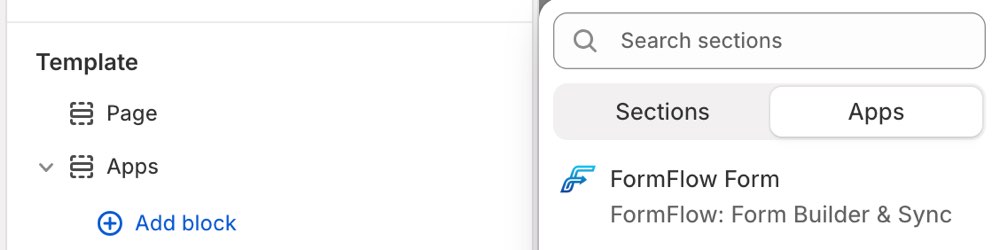
- To add it manually instead: go to Online Store → Themes → Customize, choose the page type from the template menu at the top of the editor, click Add section, open the Apps tab, and choose FormFlow Form.
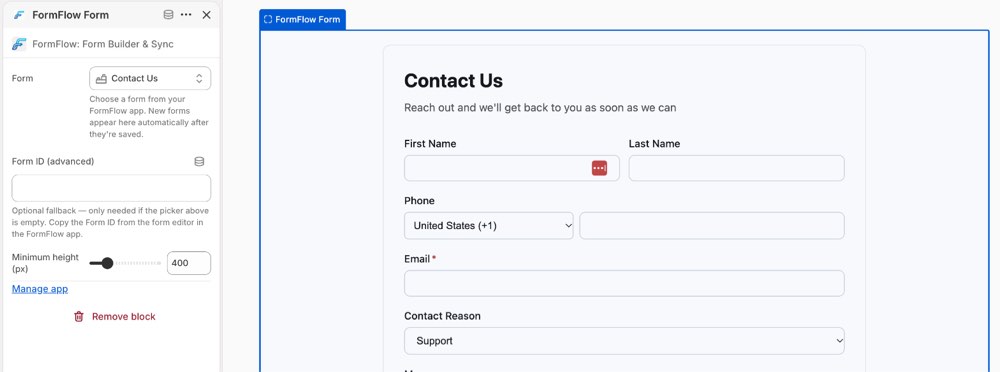
- Select the block. In its settings, pick your form from the Form dropdown.
- Click Save.
Adding the block manually — Add section → Apps → FormFlow Form:
Picking your form in the block's settings:
[!TIP] Good to know: a block added to a template appears on every page that uses that template. For example, adding it to the default page template shows it on all pages that use it. To show a form on just one page, create a new template in the theme editor, add the block there, then assign the template to your page under Online Store → Pages → Theme template.
Move, hide, or remove the block
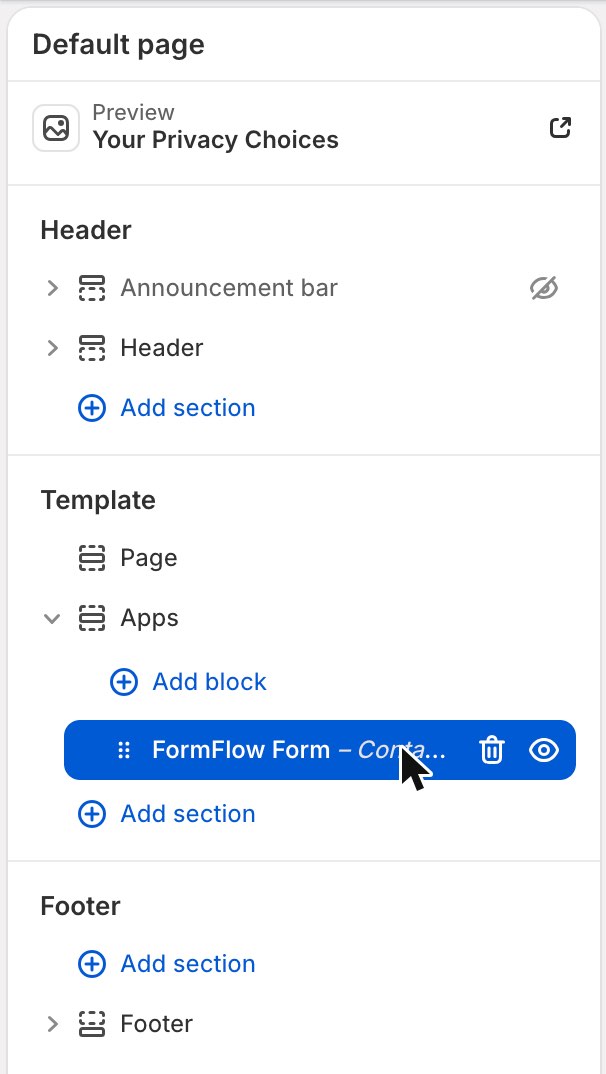
- Move it: in the theme editor's left sidebar, drag the FormFlow section by its handle to a new position, then click Save.
- Hide it: click the eye icon next to the block, then click Save.
- Remove it: select the block, click Remove block at the bottom of its settings, then click Save. Your form and its submissions stay in FormFlow.
Block settings
- Form — the FormFlow form to show. New forms appear here once they're saved.
- Form ID (advanced) — a fallback if the Form picker is empty. Copy the form's ID from FormFlow.
- Minimum height — reserves space on the page while the form loads (200–1200 px).
If you have a vintage theme
Vintage themes don't support app blocks, so inline forms aren't available. You can still:
- Use a popup: in the form builder, set the form type to Popup, then turn on the app embed (above).
- Link to the form's own page: in the form builder, open Settings → Copy URL, then add the link to a page, menu, or button.
- Switch to an Online Store 2.0 theme (for example Dawn) to place forms inline.
Need help?
Contact us from Support in the FormFlow menu.